
Use ElasticPress when native WordPress search feels slow, weak, or weird. It connects WordPress to Elasticsearch, a search engine built for speed and better matching. Your visitors get sharper results. Your server gets less stressed. Your content stops hiding in the digital sock drawer.
TLDR: ElasticPress makes WordPress search faster and smarter by sending posts, pages, products, and other content to Elasticsearch. For example, a WooCommerce store with 8,000 products might cut search time from 2.4 seconds to 300 milliseconds, while also showing better matches for typos and partial terms. If users search “blue hoodie” and find the right product on the first try, they stay longer and buy more. That is the whole point.
Why WordPress Search Needs Help
Default WordPress search is fine for tiny sites. A five-page blog? Sure. A big store? Not so much.
WordPress search often checks titles and content in a basic way. It can miss related words. It can struggle with custom fields. It can feel slow when your site grows. Honestly, it feels like asking a librarian to find a book by shaking the whole shelf.
This gets worse when you add:
- Hundreds or thousands of posts.
- WooCommerce products with prices, SKUs, and tags.
- Custom post types like events, jobs, courses, or listings.
- Advanced filters for categories, colors, sizes, dates, or locations.
- High traffic during sales or content spikes.
Search should help people find things. Not make them rage-click.

What Is ElasticPress?
ElasticPress is a WordPress plugin that connects your site to Elasticsearch. Think of Elasticsearch as a super-fast search brain. ElasticPress is the friendly translator between WordPress and that brain.
When you publish or update content, ElasticPress indexes it. That means it sends a structured copy to Elasticsearch. Then, when someone searches your site, Elasticsearch handles the hard work. WordPress gets the results back and shows them to the visitor.
Simple version:
- WordPress stores your content.
- ElasticPress syncs your content.
- Elasticsearch searches it quickly.
- Your visitors get better results.
What Does ElasticPress Improve?
ElasticPress does more than speed things up. Speed is nice. But better results are the real prize.
Here is what it can improve:
- Relevance: Better matches show higher in results.
- Speed: Big searches run much faster.
- Autosuggest: Users see search ideas as they type.
- WooCommerce search: Products become easier to find.
- Facets: Users can filter by price, color, category, and more.
- Custom fields: Search can include data beyond titles and body text.
- Related posts: Content recommendations can get smarter.
It drives me crazy when a site sells “red running shoes” but shows blog posts about “running a red light.” Better search logic helps avoid that nonsense.
How Elasticsearch Fits In
Elasticsearch is made for search. It breaks content into searchable pieces. It scores matches. It handles lots of queries at once. It is much better at this job than a normal WordPress database query.
WordPress uses MySQL or MariaDB. Those databases are great for storing site data. But they are not built to be magical search machines.
Elasticsearch is different. It understands things like:
- Partial matches, such as “shoe” matching “shoes.”
- Weighted fields, where product titles matter more than descriptions.
- Fast filtering, even across large catalogs.
- Typo tolerance, depending on setup.
- Sorting by relevance, price, date, or popularity.

Best Use Cases for ElasticPress
ElasticPress is not needed for every site. If your blog has 30 posts, keep things simple. But if search matters to your income or user experience, it can be a big win.
It is especially useful for:
- WooCommerce stores with many products.
- Publishing sites with large article archives.
- Membership sites with lessons, files, or resources.
- Directories with locations, listings, or profiles.
- Job boards with filters for roles and cities.
- Education sites with courses and documents.
Here is a simple case. A recipe site has 5,500 recipes. Users search “vegan pasta.” Native WordPress search shows old posts with the word “vegan” buried near the bottom. ElasticPress can rank recipes with “vegan pasta” in the title higher. It can also factor in tags, categories, and custom fields. The result feels smarter.
How to Set Up ElasticPress
The basic setup has three parts. You need the plugin. You need Elasticsearch. Then you need to index your content.
- Install the ElasticPress plugin from the WordPress plugin directory or from its official source.
- Set up Elasticsearch through your host, a cloud provider, or a managed ElasticPress service.
- Connect ElasticPress to your Elasticsearch endpoint.
- Run the sync so your content gets indexed.
- Test search on the front end of your site.
- Tune results by choosing features and field weights.
Expect to waste time on version mismatches if you skip the docs. ElasticPress, WordPress, PHP, and Elasticsearch versions need to play nicely together. Check compatibility first. You will thank yourself later.
Key Features to Turn On
ElasticPress has feature modules. You do not need every one. Start with the ones that match your site goals.
- Search: Replaces default WordPress search with Elasticsearch-powered results.
- WooCommerce: Improves product search, filtering, and performance.
- Autosuggest: Shows instant suggestions while users type.
- Facets: Adds filters for large content sets or product catalogs.
- Related posts: Suggests content based on search data.
For a store, start with Search, WooCommerce, and Facets. For a blog or media site, start with Search, Autosuggest, and Related posts.
How to Make Results Better
Fast search is good. Useful search is better.
You can improve results by tuning what matters most. For example, a product title should usually matter more than a long description. A SKU match should be very strong. A tag match may be helpful, but less critical.
Try these practical tweaks:
- Boost titles so exact topic matches rise up.
- Include custom fields like SKU, brand, location, or author.
- Clean old content that should not appear in search.
- Use clear categories and tags.
- Track searches that return no results.
- Add synonyms where useful, such as “sneakers” and “trainers.”
Common Problems and Quick Fixes
ElasticPress is powerful, but it is not magic dust. Things can break if setup is sloppy.
- Search shows old results: Reindex your content.
- New posts do not appear: Check sync status and background jobs.
- Results look strange: Review field weights and enabled post types.
- Site feels slow during indexing: Run indexing during quiet hours.
- Connection fails: Check endpoint URL, auth details, firewall rules, and SSL.
Also, watch hosting limits. Elasticsearch needs memory. A tiny server can choke. Managed services cost more, but they save headaches. For many business sites, that trade is worth it.
How to Measure the Win
Do not just install ElasticPress and clap. Measure it.
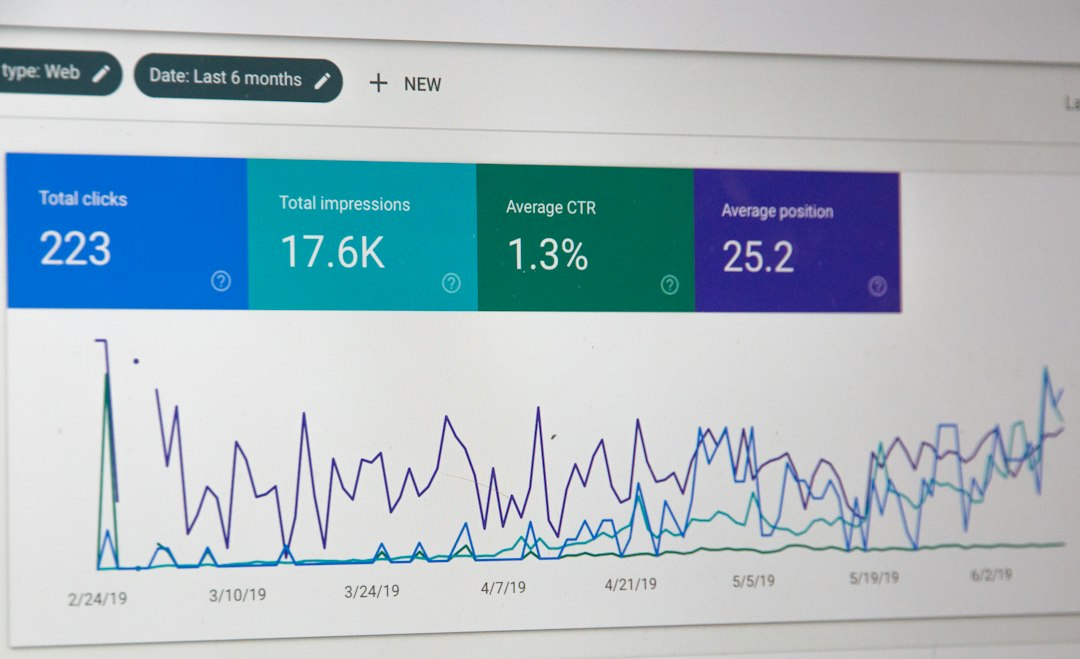
Track these numbers before and after launch:
- Average search response time.
- Searches with zero results.
- Click rate from search results.
- Product conversion rate from search users.
- Server load during search-heavy periods.
A good target is simple. Search pages should feel instant. Zero-result searches should drop. Users who search should click more. On stores, users who search often buy at a higher rate because they already know what they want.
Is ElasticPress Worth It?
Yes, if search matters. That means stores, archives, directories, learning sites, and content-heavy businesses. ElasticPress can make WordPress search faster, smarter, and less annoying.
Skip it if your site is small and search is not a major feature. Keep your stack simple when simple is enough.
But if users depend on search, ElasticPress is one of the cleanest ways to upgrade WordPress. It gives your site a real search engine. Not a tired database query wearing a fake mustache.