
When a WordPress administrator clicks Update now and sees “Update Failed: Download failed. Unauthorized”, the update process has usually been blocked before WordPress can download the plugin, theme, or core package. The message can appear during updates for premium plugins, licensed themes, or even WordPress core if the server cannot authenticate the request. Although it looks serious, the issue is often caused by expired licenses, incorrect permissions, security rules, or server configuration problems.
TLDR: This error usually means WordPress tried to download an update but the update server rejected the request. For example, a premium plugin may fail if its license key expired or was moved to another domain. In many cases, administrators can fix the error by reconnecting the license, clearing cached update data, and checking file permissions. On managed WordPress sites, support teams often find that around 60% to 70% of these cases are related to licensing or authentication problems.

What the “Unauthorized” Update Error Means
The word “Unauthorized” means that WordPress sent a request to download an update, but the server providing the update refused access. This is different from a simple connection timeout or broken download. In this case, WordPress reached the source, but the source did not allow the download.
This most commonly happens with premium plugins and themes. Many commercial products require a valid license key before updates can be downloaded. If the key is missing, expired, assigned to another domain, or blocked by the vendor, the update request fails.
However, licensing is not the only cause. The problem can also come from security plugins, incorrect server permissions, firewall blocks, corrupted update transients, or hosting restrictions.
Common Causes of the Error
- Expired or invalid license: The plugin or theme license may no longer be active.
- Domain mismatch: The license may be registered to a different domain, staging site, or old URL.
- Missing API authentication: The update server may require an API key, token, or account connection.
- Security plugin interference: A firewall or hardening plugin may block outgoing update requests.
- Incorrect file permissions: WordPress may not have enough permission to write update files.
- Server firewall restrictions: The host may block external HTTP requests to vendor update servers.
- Corrupt WordPress update cache: Old update data may cause WordPress to request the wrong package.
1. Check the Plugin or Theme License
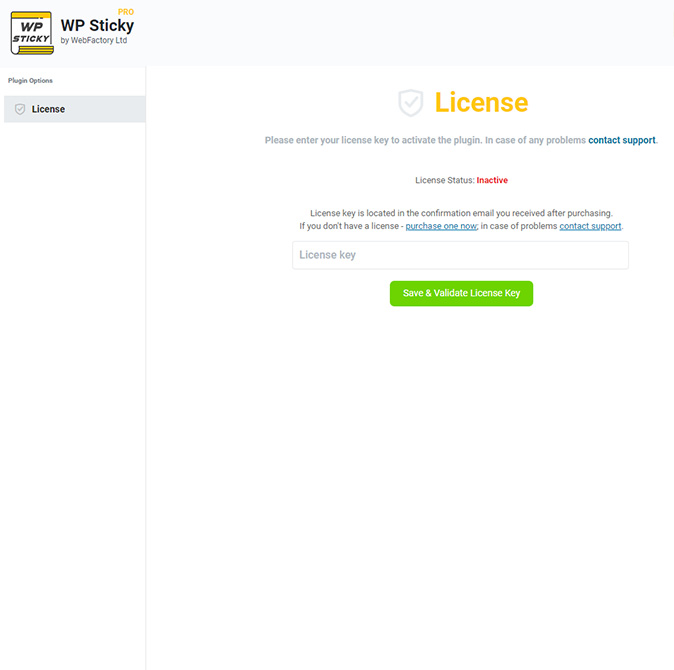
The first step is to check whether the failing update belongs to a premium plugin or theme. If so, the administrator should open the plugin or theme settings page and look for a License, Account, or Activation tab.
The license should be active, connected to the correct domain, and not expired. If the site recently moved from a staging URL to a live domain, the license may still be assigned to the staging site. In that case, the old domain must be deactivated in the vendor account, and the live domain must be activated.
If the product uses an API key, the key should be copied again from the vendor dashboard and saved in WordPress. Even a small typo or extra space can cause authorization failure.
2. Disconnect and Reconnect the License
If the license appears active but updates still fail, the administrator should disconnect and reconnect it. Many WordPress products store authorization data locally, and that data can become outdated after a domain change, SSL change, migration, or vendor account update.
- Open the plugin or theme license settings.
- Click Deactivate, Disconnect, or Remove license.
- Save the settings.
- Reenter the license key or reconnect the account.
- Return to the updates screen and try the update again.
This simple reset often refreshes the authentication token and allows WordPress to download the update package successfully.
3. Clear WordPress Update Cache
WordPress stores update information in temporary database records known as transients. If this cached data becomes stale, WordPress may continue trying to download an old or unauthorized package.
An administrator can clear update cache by visiting Dashboard > Updates and clicking Check again. If that does not work, a database optimization plugin or WP CLI can remove expired transients. With WP CLI, a developer may run:
wp transient delete --allAfter clearing transients, WordPress should be asked to check for updates again. This forces the site to request fresh update information from WordPress.org or the product vendor.
4. Verify File and Folder Permissions
Although the word “Unauthorized” often points to license issues, file permission problems can also interrupt updates. WordPress must be able to write to the wp-content, plugins, themes, and upgrade directories.
Typical permissions are:
- Folders: 755
- Files: 644
Permissions should not be set to 777 unless a hosting provider specifically recommends it for a temporary diagnostic reason. Overly open permissions create security risks. If permissions look wrong, the hosting control panel, FTP client, or system administrator can correct them.
5. Disable Security Plugins Temporarily
Security plugins can block outgoing requests if they consider an update server suspicious. This can happen after a firewall rule change, country blocking configuration, or aggressive hardening setting.
The administrator can temporarily disable security, firewall, or malware scanning plugins and then try the update again. If the update succeeds, the plugin was likely blocking the request. The safer long-term fix is not to leave security disabled, but to whitelist the vendor’s update URL or adjust the firewall setting that caused the block.
6. Check Server Firewall and Hosting Restrictions
Some hosting environments restrict outbound connections. If WordPress cannot communicate with the update provider, the request may fail or return an unauthorized response.
The hosting provider can check whether the server is blocking external HTTP or HTTPS requests. The administrator should provide the exact error message, the plugin or theme name, and the vendor update URL if available. A host can review firewall logs, ModSecurity rules, cURL errors, and DNS resolution problems.
For premium products, the vendor may also provide a list of domains that must be reachable from the WordPress server. Those domains can be whitelisted by the host if necessary.
7. Confirm the Site URL and SSL Configuration
Licensing systems often validate the site URL. If WordPress is configured with the wrong address, the update server may reject the request. The administrator should check Settings > General and confirm that both the WordPress Address and Site Address are correct.
Special attention should be given to changes between http and https, www and non-www domains, and staging versus live environments. A site licensed for https://example.com may not be recognized as the same site as http://www.example.com by some vendors.
8. Update Manually as a Temporary Fix
If the update is urgent, the administrator can perform a manual update. For a plugin or theme, the latest ZIP file can usually be downloaded from the vendor account. Then it can be uploaded through Plugins > Add New > Upload Plugin or Appearance > Themes > Add New > Upload Theme.
Before doing this, a full backup should be created. Manual updates can overwrite files, and a backup protects the site if compatibility problems occur. Manual updating should be treated as a workaround, not a permanent fix, because future automatic updates may continue to fail until the authorization issue is resolved.

9. Review Error Logs
If the cause is still unclear, error logs can provide useful clues. WordPress debug logs, hosting logs, and browser network responses may reveal whether the issue is caused by a 401 unauthorized response, 403 forbidden response, cURL failure, blocked IP address, or invalid license token.
An administrator can enable WordPress debugging by adding the following lines to wp-config.php:
define('WP_DEBUG', true);
define('WP_DEBUG_LOG', true);
define('WP_DEBUG_DISPLAY', false);
After testing the update, the log file can usually be found at wp-content/debug.log. Debugging should be disabled after troubleshooting is complete.
Best Practices to Prevent the Error
- Keep premium plugin and theme licenses renewed.
- Deactivate licenses on old, staging, or unused domains.
- Use a reliable hosting provider that allows secure outbound requests.
- Keep backups before every major update.
- Document vendor account logins and license keys securely.
- Test updates on a staging site before applying them to a live site.
FAQ
What does “Update Failed: Download failed. Unauthorized” mean in WordPress?
It means WordPress attempted to download an update package, but the server providing the file rejected the request. This is usually related to a license, API key, account connection, or access restriction.
Is this error caused by WordPress itself?
Not usually. The error is often caused by a premium plugin or theme update system, a server firewall, a security plugin, or incorrect authentication data.
Can an expired license cause the unauthorized update error?
Yes. An expired or invalid license is one of the most common causes. Renewing and reconnecting the license often fixes the issue.
Should the administrator delete the plugin and reinstall it?
That should only be done carefully and after creating a full backup. Some plugins store settings in the database, while others may remove data when deleted. A manual update is usually safer than deleting first.
Can hosting support fix this issue?
Hosting support can help if the problem is caused by blocked outbound requests, ModSecurity rules, DNS issues, file permissions, or server firewall restrictions. If the issue is license related, the product vendor is usually the best contact.
What is the fastest fix?
The fastest fix is to check the product license, reconnect it, clear the update cache, and try the update again. If the update is urgent, a manual update from the official vendor account can be used as a temporary solution.