
Starlink is designed to deliver broadband in places where cable, fiber, and cellular networks may be unavailable or unreliable. Even so, users sometimes experience slow speeds, high latency, buffering, or sudden drops in performance. The reason is rarely a single fault; in most cases, slow Starlink internet is caused by a combination of network demand, dish placement, weather, Wi-Fi limitations, and service plan conditions.
TLDR: Starlink internet is often slow because the satellite connection is shared with other users in your area, and performance can drop during busy evening hours. Obstructions such as trees, roofs, or poles can also interrupt the signal, while heavy rain, snow, or poor dish placement may reduce speed and stability. In many homes, the problem is not the satellite link itself but the local Wi-Fi setup, router location, or outdated equipment. Checking the Starlink app, improving dish visibility, and separating Wi-Fi issues from satellite issues are the best first steps.
Starlink Speeds Are Shared, Not Guaranteed
One of the most important things to understand is that Starlink is a shared satellite network. Your dish connects to satellites passing overhead, and those satellites also serve many other customers within the same region. When more people are online at the same time, the available capacity is divided among more users.
This is why Starlink may feel fast in the early morning but noticeably slower in the evening. Streaming, video calls, gaming, and large downloads all peak after work and school hours. If your area has many active Starlink subscribers, congestion can reduce speeds even when your equipment is working correctly.
Residential users may also experience lower priority compared with certain business, maritime, mobility, or priority data plans. This does not mean the service is broken; it means the network is managing limited satellite capacity according to plan type and local demand.
Obstructions Are a Major Cause of Slow or Unstable Service
Starlink needs a clear view of the sky. Unlike traditional satellite internet, which points at a fixed satellite far above the equator, Starlink tracks many low Earth orbit satellites moving quickly across the sky. If trees, buildings, chimneys, hills, or utility poles block part of the dish’s field of view, the connection may pause briefly or become unstable.
Small interruptions may not be obvious during web browsing, but they can cause serious problems for video calls, online gaming, live streaming, and remote work. The result often feels like “slow internet,” even though the real issue is repeated signal interruption.
Image not found in postmetaThe Starlink app is one of the most useful diagnostic tools. Its obstruction map can show whether your dish has a clear enough view and where interruptions are occurring. If obstructions are detected, moving the dish to a higher or more open location may improve performance more than changing any router setting.
Weather Can Reduce Performance
Starlink generally performs well in normal weather, but severe conditions can have an effect. Heavy rain, thick cloud cover, snow buildup, ice, and intense storms can weaken or scatter the signal between the dish and the satellite. This is known as rain fade, and it affects many satellite-based communication systems.
Snow can be especially problematic if it accumulates on or around the dish. Starlink dishes have built-in heating features, but they are not always enough during heavy snowfall, freezing rain, or drifting snow. If the dish is buried, tilted incorrectly, or surrounded by ice, speeds may drop or the connection may cut out.
Weather-related slowdowns are usually temporary. However, if poor performance continues after conditions improve, the cause is more likely to be obstructions, equipment, local Wi-Fi, or network congestion rather than the weather itself.
Your Wi-Fi Network May Be the Bottleneck
Many users assume Starlink is slow when the real problem is the home Wi-Fi network. The speed delivered to the dish is not always the same speed received by a phone, laptop, smart TV, or gaming console. Walls, floors, appliances, distance from the router, and interference from neighboring networks can all reduce Wi-Fi performance.
For example, a user may see strong Starlink performance in the app but poor speed on a device in another room. In that case, the satellite connection may be fine, while the Wi-Fi signal is weak. This is common in larger homes, metal buildings, thick-walled houses, and properties with detached offices or workshops.
To check whether Wi-Fi is the issue, compare speeds near the router with speeds farther away. If there is a major difference, the solution may involve relocating the router, adding a mesh node, using Ethernet where possible, or reducing interference from other electronics.
Dish Alignment and Installation Matter
Starlink dishes are designed to align automatically, but installation still matters. A dish placed on unstable ground, a flexible pole, or a surface that shifts in wind may not maintain optimal performance. Even minor physical movement can affect reliability, especially if the dish is already close to an obstruction.
The cable and connectors should also be checked. A damaged cable, loose connector, sharp bend, or water exposure can create intermittent problems that look like network slowdowns. If speeds are inconsistent and the app shows hardware warnings, the issue may be physical rather than network-related.
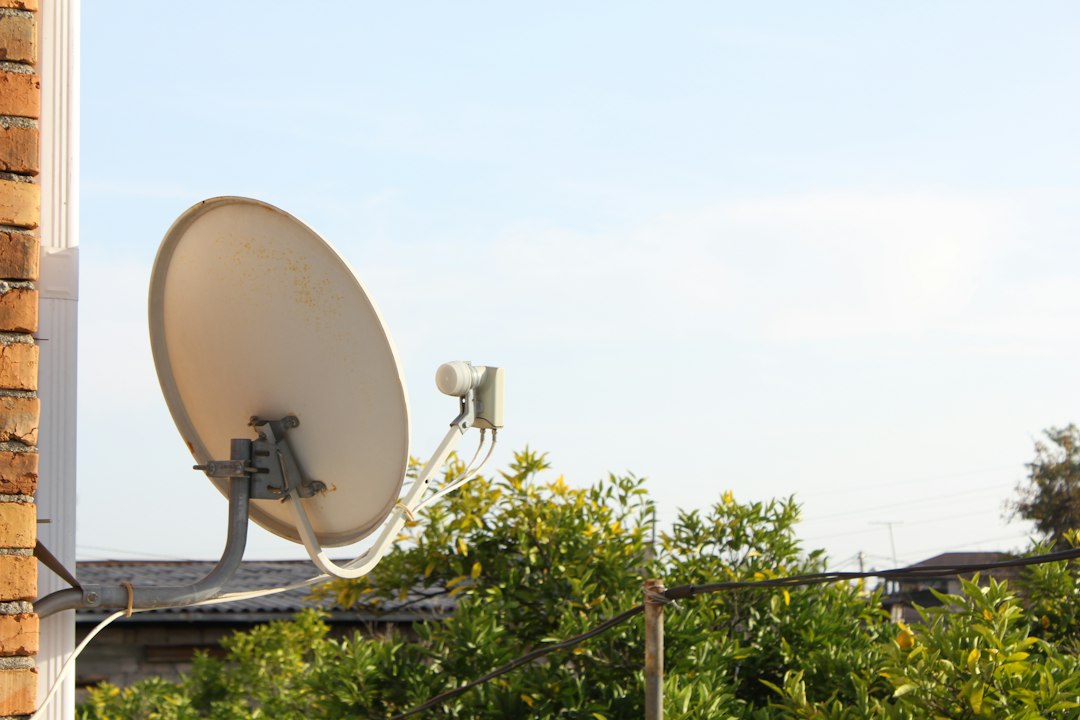
A proper installation should prioritize three things: a clear sky view, physical stability, and protected cabling. Mounting the dish higher is often helpful, but only if it is done safely and securely.
Service Plans and Data Priority Can Affect Speed
Starlink offers different service plans, and not all plans receive the same priority under heavy network load. Some plans include priority data, while others may be deprioritized when the network is busy. Users on roaming or mobile plans may also see different performance depending on location and local capacity.
This is important for people who travel with Starlink. A dish that works very well in one rural area may slow down in another area where network demand is higher. Similarly, performance can vary between countries, regions, and even nearby communities.
If slow speed happens mainly at certain times of day, especially evenings, congestion or deprioritization is more likely. If it happens all day and the app reports obstructions or outages, the cause is probably local to your setup.
Devices, VPNs, and Background Usage Can Also Slow Things Down
Sometimes the connection itself is not the only factor. A home with multiple devices streaming 4K video, downloading games, backing up photos, or running cloud updates can consume bandwidth quickly. One device performing a large download may make the entire network feel slow.
VPNs can also reduce speed. A VPN routes traffic through an additional server, which may increase latency and lower throughput. Some VPN servers are overloaded or far away, making Starlink appear slower than it is. Testing with the VPN turned off can help identify whether it is part of the problem.
Older phones, laptops, routers, and smart TVs may also be limited by their own hardware or Wi-Fi standards. If only one device is slow while others perform well, the issue is likely with that device rather than Starlink.
How to Troubleshoot Slow Starlink Internet
A serious troubleshooting process should separate satellite performance from local network performance. Start with the Starlink app and then test individual devices.
- Check the Starlink app: Look for outages, obstructions, hardware alerts, and network statistics.
- Run speed tests at different times: Test in the morning, afternoon, and evening to identify congestion patterns.
- Test close to the router: If speeds improve near the router, Wi-Fi coverage is likely the issue.
- Inspect dish placement: Confirm that trees, roofs, and other objects are not blocking the sky view.
- Check cables and connectors: Look for damage, moisture, loose fittings, or sharp bends.
- Restart the system: Rebooting the router and dish can resolve temporary software or connection issues.
- Limit heavy usage: Pause large downloads and cloud backups before testing performance.

When Slow Speeds Are Normal and When They Are Not
Some variation in Starlink speed is normal. Because satellites move, demand changes, and weather conditions vary, Starlink will not behave exactly like a wired fiber connection. Short periods of slower performance do not necessarily indicate a fault.
However, consistently poor speeds, frequent dropouts, app warnings, or obstruction reports should not be ignored. If the dish has a clear view, the router is well placed, cables are sound, and slow speeds continue across multiple devices, it may be appropriate to contact Starlink support. Providing screenshots from the app, speed test results, and details about the installation can help support diagnose the issue more effectively.
The Bottom Line
Starlink internet can be slow for several reasons, including network congestion, obstructions, weather, Wi-Fi limitations, service plan priority, equipment problems, and heavy household usage. The most reliable way to identify the cause is to use the Starlink app, test speeds under different conditions, and compare Wi-Fi performance near and far from the router.
For many users, the biggest improvements come from better dish placement and stronger home Wi-Fi coverage. Starlink is capable of delivering strong performance, especially in areas without good wired alternatives, but it depends heavily on a clear sky view, stable installation, and realistic expectations about shared satellite capacity.